
M2 Casino Top-Up & Withdrawal Guide
How money moves in and out of your M2 wallet, and how to avoid the small mistakes that slow withdrawals down.
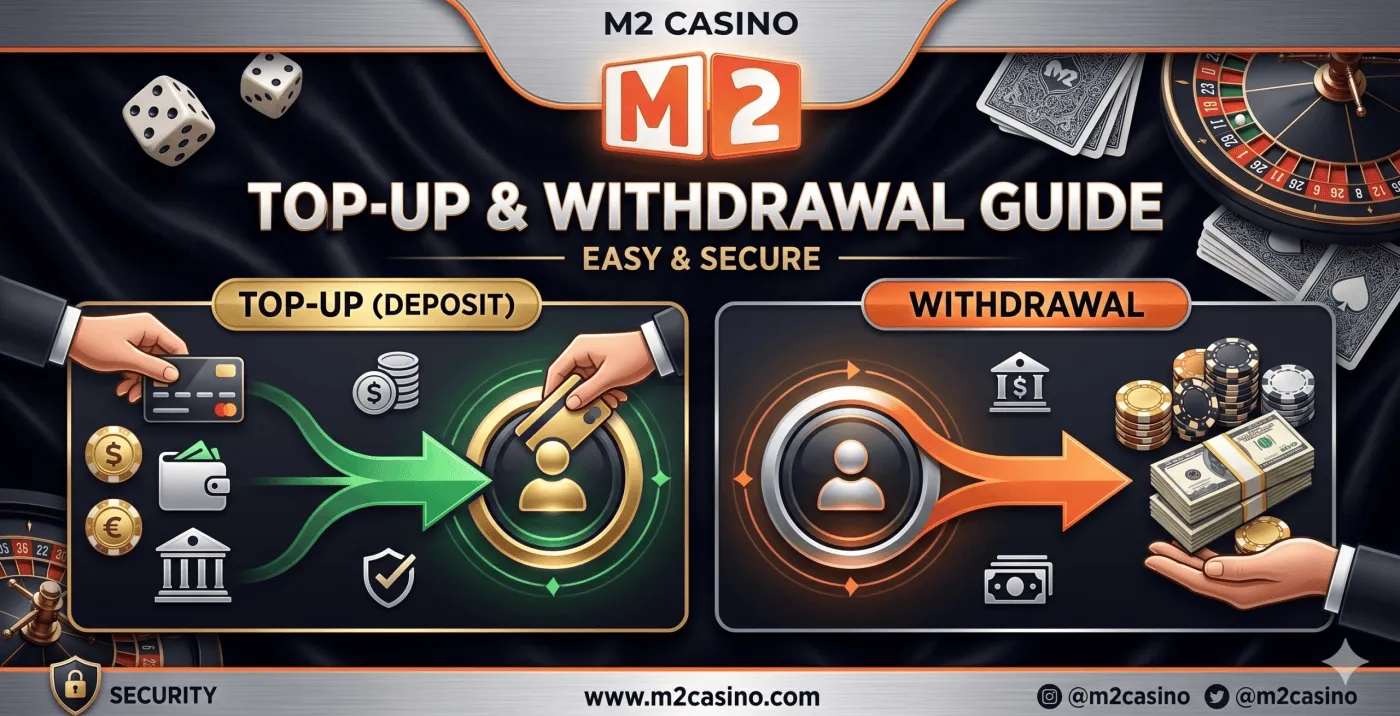
Supported Payment Methods
 Touch 'n Go eWallet
 DuitNow
 FPX online banking
 GrabPay
How to Top Up
- Log in and tap Deposit in your wallet.
- Choose FPX, DuitNow or an e-wallet.
- Enter the amount and pick any bonus you want to claim, or none.
- Approve the payment in your banking or e-wallet app.
- Your balance updates once the payment is confirmed.
How to Withdraw
- Make sure any active bonus turnover is complete.
- Tap Withdraw in your wallet.
- Select your saved bank account or e-wallet.
- Enter the amount and submit.
- You'll get a notification when the payout is sent.
M2 Casino Deposit Methods Compared
Every M2 casino deposit is made in Malaysian Ringgit through familiar local payment methods. Which one suits you mostly depends on where your money already sits: in a bank account or in an e-wallet.
| Method | Paid from | How you approve it | Good to know |
|---|---|---|---|
| FPX | Your Malaysian bank account | Log in to your bank's online banking page and authorise | Choose your bank from the list; you are sent to your bank to confirm |
| DuitNow | Your bank account or a supported app | Follow the DuitNow steps shown on the deposit screen | Use the exact amount and details shown, and keep your receipt |
| Touch 'n Go eWallet | Your TNG eWallet balance | Approve in the Touch 'n Go eWallet app | Make sure your wallet balance covers the top-up first |
| GrabPay | Your GrabPay balance | Approve in the Grab app | Keep the Grab app updated and logged in |
M2 does not charge fees on standard top-ups or withdrawals, although your bank or e-wallet may apply its own charges. Any minimum or maximum amounts for each method are shown on the deposit and withdrawal screens.
How to Make an M2 Casino Top Up, Method by Method
FPX online banking
- On the deposit screen, select FPX and enter your amount.
- Choose your bank from the list.
- You'll be taken to your bank's login page. Check the web address is your bank's genuine site before entering anything.
- Log in, review the amount and merchant details, and approve with your usual TAC or app confirmation.
- You'll be returned to M2 and your balance updates once the payment is confirmed.
Your banking login details go to your bank, not to M2. If a page asks you to type your banking password somewhere that doesn't look like your bank, stop and contact support.
DuitNow
- Select DuitNow and enter your amount.
- Follow the on-screen instructions exactly as shown for your transaction.
- Complete the payment in your banking app and make sure the amount matches.
- Save or screenshot the payment receipt.
- Wait for your M2 balance to update. If it doesn't, send the receipt to support.
Touch 'n Go eWallet
- Check your TNG eWallet has enough balance, and reload it first if needed.
- Select Touch 'n Go eWallet on the deposit screen and enter your amount.
- Approve the payment in the Touch 'n Go eWallet app when prompted.
- Return to M2 to see your updated balance.
GrabPay
- Make sure your GrabPay wallet is topped up.
- Select GrabPay and enter your amount.
- Confirm the payment in the Grab app.
- Head back to M2 once the payment is approved.
Thinking of claiming a bonus with your top-up? Select it on the deposit screen before you pay, and read its terms on our M2 Casino promotion page and in your account first. A bonus usually adds a turnover requirement before you can withdraw.
M2 Casino Withdrawal Checklist
Most withdrawal delays come from a handful of avoidable issues. Run through this list before you tap Withdraw:
- Name match: the bank account or e-wallet is in exactly the same name as your M2 profile.
- Account details: the account number saved in your profile is correct, with no missing digits.
- Bonus status: any active bonus turnover is complete, or the bonus has been dealt with according to its terms.
- Amount: you are withdrawing within any limits shown on the screen.
- One request at a time: wait for a pending request to finish before submitting another.
- Verification: if support has asked you to confirm any details, you have replied.
How M2 Withdrawals Are Processed
After you submit a withdrawal, its status appears in your transaction history. The request is checked, approved and then paid out to the account you selected. E-wallet and online banking withdrawals are usually processed quickly once approved. Your first withdrawal, or a larger amount, may take a little longer while details are verified. That check protects your balance as much as anyone's.
You'll receive a notification when the payout is sent. How soon the money shows in your bank or e-wallet can also depend on your provider.
Tips for Faster Withdrawals
- Match your names. The bank or e-wallet name must be the same as your M2 profile name.
- Finish bonuses first. Withdrawals are blocked while bonus turnover is outstanding.
- Double-check account numbers when you first add a bank.
- Keep your profile up to date. If you change banks, ask support to update your details before you withdraw.
- Keep receipts. A screenshot of your top-up helps support trace a missing payment quickly.
Troubleshooting M2 Deposits and Withdrawals
| Problem | Likely cause | What to do |
|---|---|---|
| Top-up not showing | The payment is still being confirmed | Wait a few minutes and refresh. If it still isn't there, send support the receipt, amount and time. |
| Payment failed at the bank | Session timed out, or the approval wasn't completed | Check your bank statement. If no money left your account, simply try again. |
| E-wallet payment declined | Not enough wallet balance, or a wallet limit reached | Reload your e-wallet or check its limits in the e-wallet app. |
| Withdrawal rejected | Name mismatch, wrong account number or unfinished turnover | Ask support which applies, fix it, then submit again. |
| Withdraw button unavailable | An active bonus or a pending request | Check your promotion progress and transaction history. |
| Withdrawal pending longer than usual | A first withdrawal or larger amount being verified | Check your messages for any request from support, or ask for an update. |
If your balance hasn't updated after a bank transfer, send support your payment receipt, the amount and the time of the transfer, and they'll trace it for you. Support is available 24/7 on WhatsApp and Telegram in English, Bahasa Malaysia and Mandarin.
Keeping Payments Safe
Payments are handled by established Malaysian gateways over an encrypted connection. M2 never asks for your online banking password or OTP. If anyone does, it isn't us.
Scam warning signs
- Someone messages you first claiming to be M2 support and asks for an OTP, TAC or password.
- You're asked to transfer money to a personal account to "unlock" a withdrawal or pay a release fee.
- A link takes you to a page that looks like M2 or your bank but has a slightly different web address.
- You're offered a guaranteed win, a "system hack" or a deal that sounds too good to be true.
Only contact support through the official WhatsApp and Telegram links on this site, and log in only from this site or the official app on our download page. Our article on deposit and withdrawal security goes into more detail.
Keep Good Payment Records
A simple record of your payments makes problems quicker to solve and helps you stay on top of your spending.
- Screenshot each top-up receipt, showing the amount, date and time.
- Note the time of each withdrawal request and when it arrived.
- Check your M2 transaction history against your bank or e-wallet statement now and then.
- Keep a running total of what you've deposited each week or month.
If that total is higher than you planned, it's a good moment to pause. Deposit limits and cooling-off tools are explained on our responsible gaming page. M2 is for players aged 18 and over. New here? Register first, and see the M2 Casino FAQ for more quick answers.
Payments FAQ
Which payment methods can I use for an M2 casino deposit?
FPX online banking, DuitNow, Touch 'n Go eWallet and GrabPay, all in Malaysian Ringgit (MYR).
What is the minimum M2 casino top up?
The minimum depends on the payment method and is shown on the deposit screen before you confirm.
How long does an M2 withdrawal take?
E-wallet and online banking withdrawals are usually processed quickly once approved. First withdrawals or large amounts may take longer while details are verified.
Why was my withdrawal rejected?
The most common reasons are an unfinished bonus turnover, a bank name that does not match your M2 profile, or incorrect account details. Support can tell you which applies.
Is there a fee to top up or withdraw?
M2 does not charge fees for standard top-ups or withdrawals. Your bank or e-wallet may apply its own charges.
Can I withdraw to someone else's account?
No. Withdrawals only go to a bank account or e-wallet in the same name as your M2 profile.
Can I top up using a friend or family member’s account?
It is best to use an account in your own name. Payments from third-party accounts can cause delays when the payment is checked, and withdrawals will only go to an account in your name.
My top-up left my bank but my balance has not updated. What now?
Wait a few minutes, then refresh your wallet. If it still has not appeared, send support your payment receipt, the amount and the time of the transfer so they can trace it.
Can I cancel a withdrawal after submitting it?
Contact support as soon as possible. Whether it can be cancelled depends on whether the payout has already been processed.
Will M2 ever ask for my OTP or banking password?
Never. Anyone asking for your OTP, TAC or online banking password is not M2 support. Do not share them and report the message to official support.
Top Up and Play
Open a free M2 account, pick a game you enjoy and play at your own pace. Set a budget first and treat every session as entertainment.
Play Now