
M2 Casino Register
Signing up for M2 takes about a minute on any phone or computer. Here's exactly what to expect.
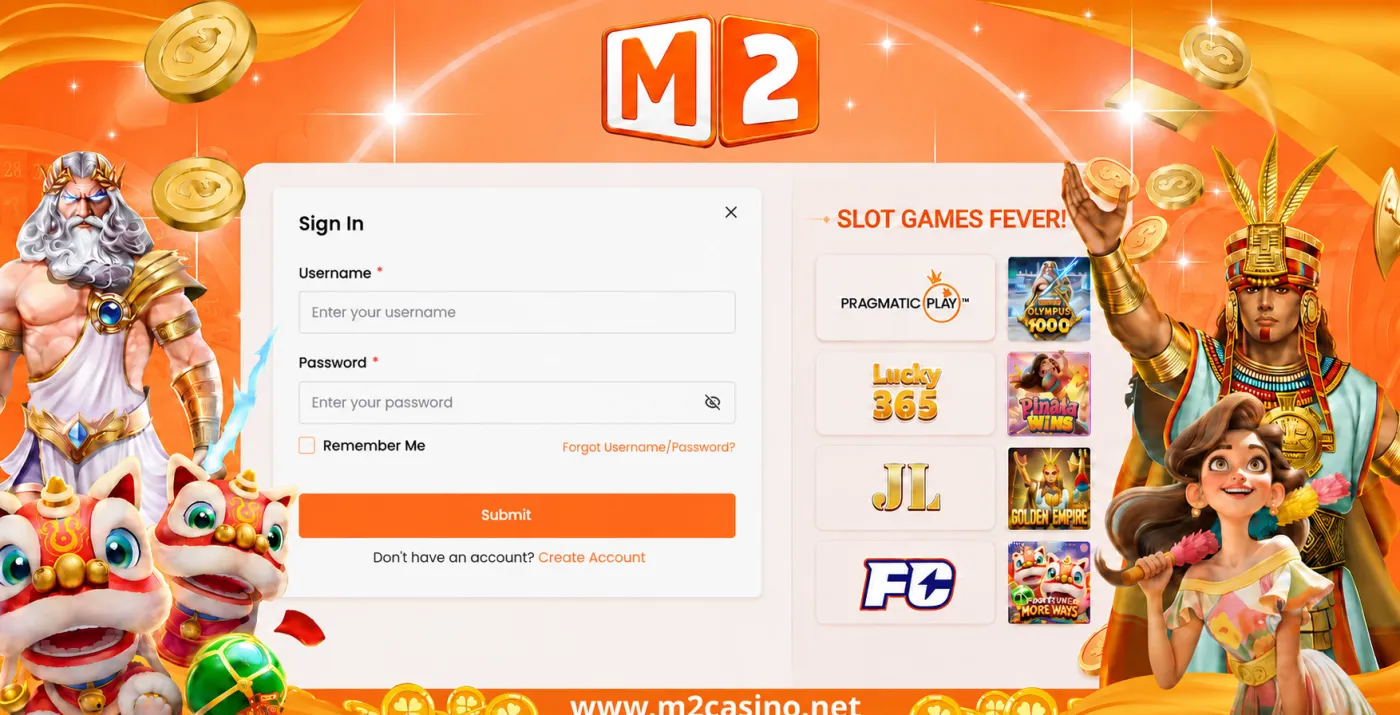
An M2 Casino account gives you one wallet for slots, live casino, sports and cockfighting, on your phone, tablet or computer. Registration is free and quick, but a few minutes of care at the start will save you trouble later, especially when you make your first withdrawal. This guide covers who can sign up, what every field on the form means, how verification works and how to finish setting up your M2 account properly.
Who Can Register for M2
- You must be 18 or over. M2 is for adults only.
- One account per person. If you already have an M2 account, use the login page or ask support to help you recover it instead of opening a new one.
- A mobile number you control. Verification codes and password resets are sent to it by SMS or WhatsApp.
- A bank account or e-wallet in your own name. The name must match your M2 profile.
How to Register: Field by Field
Tap Register at the top of any page or on the app's start screen. The form is short, but each field matters.
1. Username
This is your login ID, not your display name or phone number. Choose something you'll remember and that doesn't reveal personal details such as your full name or birth date. Treat it as permanent, and write it down somewhere safe.
2. Password
Your password protects your balance, so make it strong and unique. See the tips in the next section before you type one in.
3. Confirm password
Type the same password again. If the form says they don't match, check for auto-capitalisation on your phone keyboard.
4. Mobile number
Enter a Malaysian mobile number you can access right now. It's used for your one-time code at sign-up, for password resets and for two-factor authentication if you switch it on. Double-check the digits: a single typo means the code goes to someone else.
5. Verification code (OTP)
M2 sends a one-time code by SMS or WhatsApp. Enter it on the form to confirm the number is yours. Codes only stay valid for a short time, so keep the page open and enter it as soon as it arrives.
6. Submit and log in
Accept the terms after reading them, tap Register and your account is created. You'll usually be taken straight to the lobby.
M2 Casino Sign Up on Phone, App or Computer
The form is the same wherever you open it, and the account you create works on every device. A few small differences are worth knowing:
- Mobile browser: the quickest way to register. Open the official link in Chrome, Samsung Internet or Safari and tap Register. If the one-time code arrives while you're on the form, switch to SMS or WhatsApp, copy the code and switch back without closing the page.
- M2 app: tap Register on the start screen. Signing up in the app means you can switch on biometric login right after your first login. Get the app from the M2 download page.
- Desktop or laptop: typing a strong password is easier on a full keyboard. Keep your phone nearby for the verification code.
Whichever you choose, use the official Register button on this page rather than a link forwarded in a chat group, so your details go to the real M2 site.
Choosing a Secure Password
- Make it long. A short phrase of unrelated words with numbers mixed in is stronger than a single word.
- Mix character types. Use upper- and lower-case letters and numbers.
- Keep it unique. Never reuse a password from your email, social media or another gaming site.
- Avoid the obvious. Skip names, phone numbers, birth dates and patterns like 123456.
- Store it safely. A password manager is safer than a note in your phone's gallery.
M2 Casino Sign-Up Verification Problems
| Problem | Likely cause | What to do |
|---|---|---|
| Code never arrives | Weak signal or a typo in the number | Check the number, move to better signal, wait a minute and tap Resend |
| Code says expired | Entered after its short validity window | Request a new code and enter it straight away |
| Code rejected as invalid | An older code was used after a resend | Use only the most recent code you received |
| Number already registered | You, or someone using your old number, signed up before | Try the login page or Forgot Password, or contact support |
| Username taken | Another player already uses it | Add a word or a few numbers to make it unique |
Still stuck? Support is available 24/7 on WhatsApp and Telegram in English, Bahasa Malaysia and Mandarin.
Adding Your Bank or E-Wallet Details
Before your first withdrawal, open Profile and add the bank account or e-wallet you want to be paid into. The account holder's name must match the name on your M2 profile exactly. If your bank shows your full name with a middle name or bin/binti, enter your profile name the same way. Mismatched names are one of the most common reasons a withdrawal is held for checks.
You can use a bank account for FPX or DuitNow, or an e-wallet such as Touch 'n Go eWallet or GrabPay. Many players add the same account they plan to deposit from, which keeps records simple and makes it easy to match payments to your profile if support ever needs to check a transaction.
Only add accounts in your own name. Using a friend's or family member's account breaks the one-account-per-person rule and can lead to delays or closure.
Making Your First Deposit
- Set a budget first. Decide how much you're comfortable spending and stick to it. Our responsible gaming page has practical tips.
- Open Deposit from the wallet or lobby.
- Choose a method. M2 accepts MYR through FPX, DuitNow, Touch 'n Go eWallet and GrabPay.
- Enter the amount and follow the prompts in your banking or e-wallet app.
- Check your balance. Once the payment is confirmed, the amount appears in your M2 wallet.
For method-by-method notes, read the top-up and withdrawal guide, and see deposit and withdrawal security for tips on keeping payments safe. Thinking about a bonus? Check the current promotions, including the daily rebate of up to 10%, and read the terms before claiming.
M2 Account Setup Checklist
- Username and password saved somewhere secure
- Mobile number verified by OTP
- Two-factor authentication switched on in account settings
- Bank or e-wallet added, with the name matching your profile
- M2 app installed from the official download page, with biometric login on
- Personal budget decided before your first deposit
- Support saved in WhatsApp or Telegram for quick help
Mistakes to Avoid When You Sign Up
- Opening a second account. Duplicates can be closed and bonuses removed. Recover your old account instead.
- Using someone else's number or bank account. Everything should be in your own name.
- Mistyping your mobile number. You'll need it for every password reset.
- Reusing an old password. If that password leaks elsewhere, your M2 balance is at risk.
- Claiming a bonus without reading the terms. Every offer has its own conditions.
- Registering through an unofficial link. Use the Register button on this page so your details go to the real M2 site.
After You Register
Your account is ready to use straight away. Browse popular games from JILI, Pragmatic Play, Playtech, JDB, Fa Chai and Lucky365, or try live tables from Evolution, Sexy Baccarat and Big Gaming. The mobile setup guide helps you get the most out of M2 on your phone, and the M2 Casino FAQ answers most other questions.
Already have an account? Go to the M2 login guide.
M2 Registration FAQ
Is registering with M2 Casino free?
Yes. Creating an M2 account costs nothing and you do not have to deposit straight away.
What do I need to sign up for M2 Casino?
A username, a strong password and a Malaysian mobile number that can receive a one-time code by SMS or WhatsApp. You must be 18 or older.
Can I open more than one M2 account?
No. Each person may hold one M2 account. Duplicate accounts can be closed and any bonuses on them removed.
I did not receive my verification code. What should I do?
Check the number you entered, make sure you have signal, wait a minute and tap Resend. Look in both SMS and WhatsApp. If it still does not arrive, contact support on WhatsApp or Telegram.
Why must my bank or e-wallet name match my M2 profile?
Matching names protect you. They confirm that deposits and withdrawals belong to the account holder, and mismatched names can delay a withdrawal until the details are corrected.
Which payment methods can I use after I register?
M2 accepts MYR through FPX, DuitNow, Touch 'n Go eWallet and GrabPay. Our top-up and withdrawal guide explains each one.
Can I register on my phone?
Yes. You can sign up in any mobile browser, in the M2 app or on a computer. The same account then works on every device.
Should I turn on two-factor authentication?
We recommend it. Two-factor authentication is optional, but it adds a one-time code at login so a stolen password alone is not enough to access your account.
What should I do right after registering?
Add your bank or e-wallet details, switch on two-factor authentication, install the app if you want biometric login, and set a budget before your first deposit.
Create Your M2 Account
Open a free M2 account, pick a game you enjoy and play at your own pace. Set a budget first and treat every session as entertainment.
Register